The TorqCade Host App lets RC owners connect a TorqCade Dongle, RC transmitter, camera and computer to create real remote driving sessions for friends, testers or future marketplace drivers.
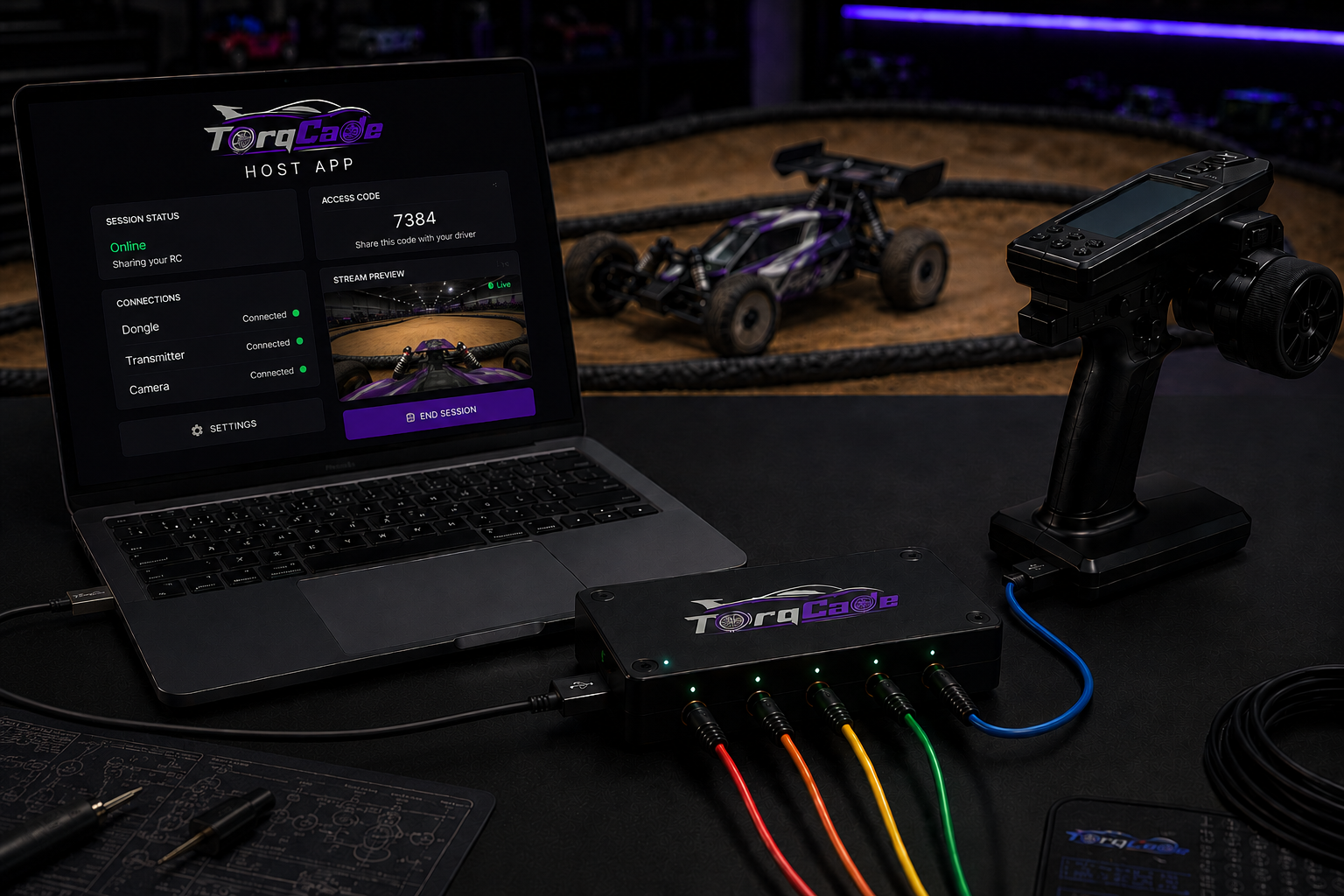
The Host App sends driving control signals from the remote driver to the TorqCade Dongle connected to your computer.
The dongle outputs trainer-port signals to your RC transmitter, so your real RC car can be driven remotely.
The Host App shares live video from a camera mounted on the RC car or from a track camera watching the driving area.
You can create a private access code and share it with a driver using the TorqCade Drive App.
The USB dongle connects your computer to your RC transmitter through the trainer port.
A Windows PC or laptop running the TorqCade Host App.
You need an RC transmitter that has a trainer port and trainer function. The transmitter receives control input from the TorqCade Dongle.
You need at least one working RC car connected to your RC transmitter/receiver system.
You can use a camera mounted on the RC car for FPV driving, or one shared track camera showing the driving area for all cars in a race.
You need a USB cable from the computer to the dongle, plus the correct trainer cable from the dongle to your RC transmitter.
Mount a camera directly on the RC car to give the remote driver a first-person driving view. You can also use multiple camera views for one driver, depending on your setup.
Use one camera pointed at the track or driving area. One shared track camera can be used for up to 5 drivers/cars when all vehicles are visible in the same view.
Local Drive lets a driver connect to your Host App when both devices are on the same local network. This is the simplest way to test TorqCade without exposing your setup to the internet.
Connect the TorqCade Dongle to your computer.
Connect the dongle to your RC transmitter trainer port.
Connect your camera or video source.
Open the TorqCade Host App and start a Local Drive session.
Share the generated local access code with the driver.
The driver enters the code in the TorqCade Drive App and starts driving.
Web Drive lets you invite friends from outside your Wi-Fi network.
To use Web Drive, the host connects their own LiveKit Cloud account in the TorqCade Host App. This allows live video and driving access to be shared with remote drivers outside your local network.
Create or log in to your LiveKit Cloud account.
Enter your LiveKit connection details in the TorqCade Host App.
Connect the TorqCade Dongle, RC transmitter and camera.
Start a Web Drive session.
Share the private access code with your remote driver.
The driver connects through the TorqCade Drive App and controls the real RC car remotely.
The host is responsible for preparing a safe driving area, checking the RC car, verifying camera visibility and making sure the RC transmitter and trainer function work correctly before giving control to a remote driver.
Start with Local Drive, test your hardware, then move to Web Drive when you want to invite friends outside your local network.